Matching app icons
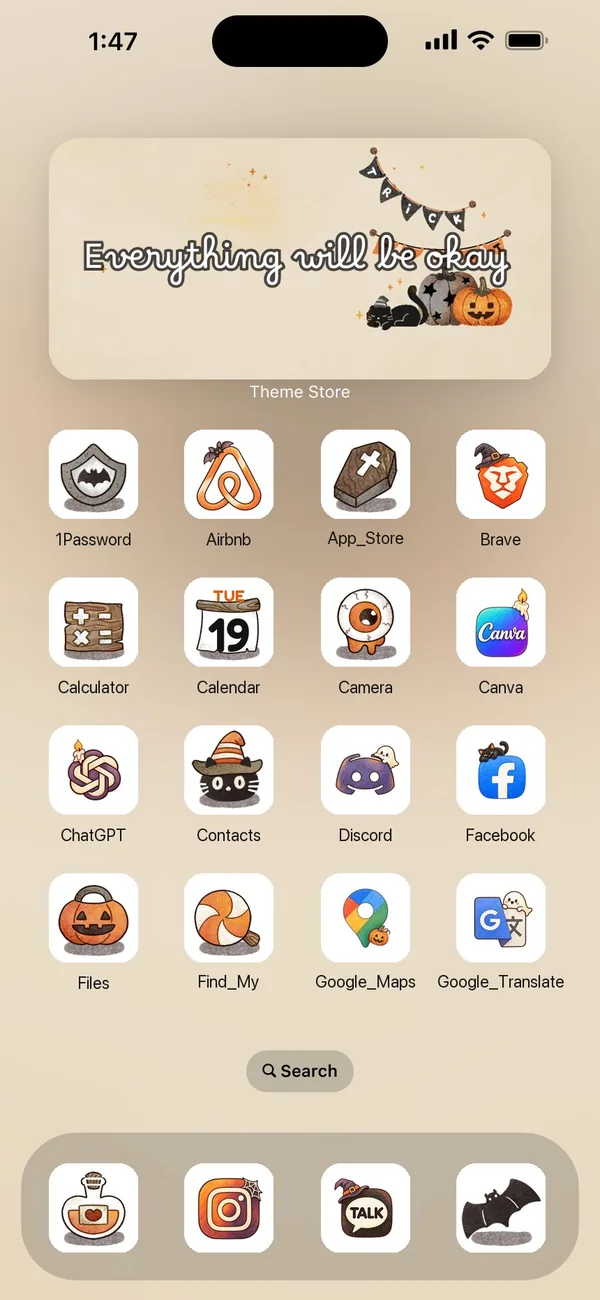
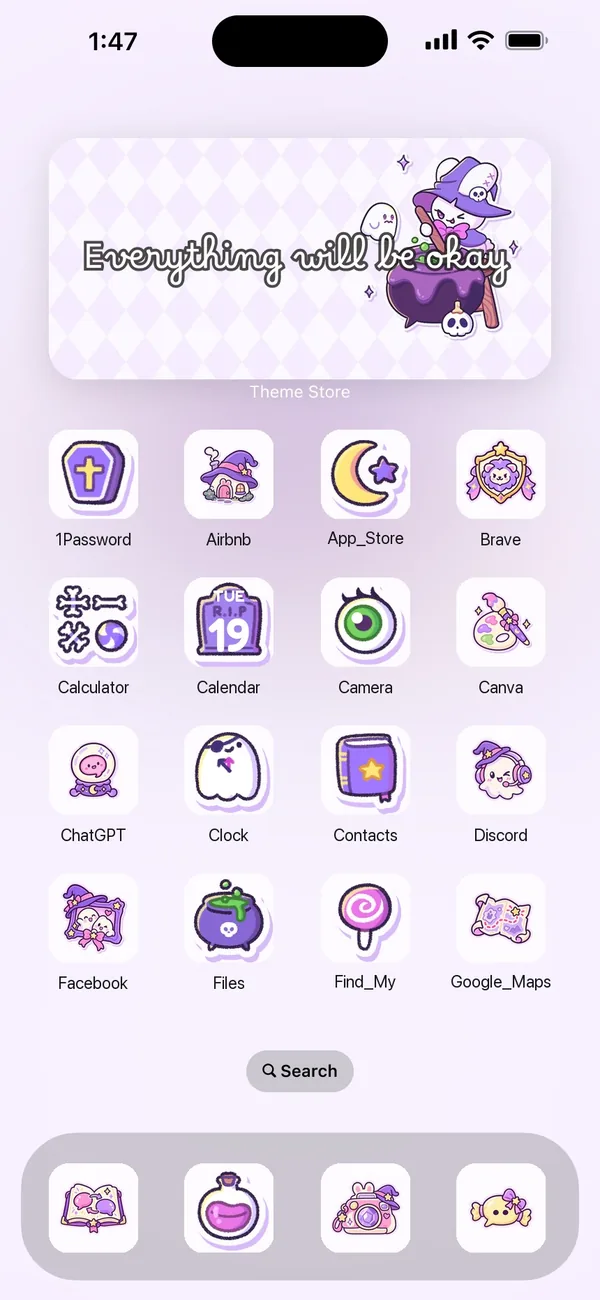
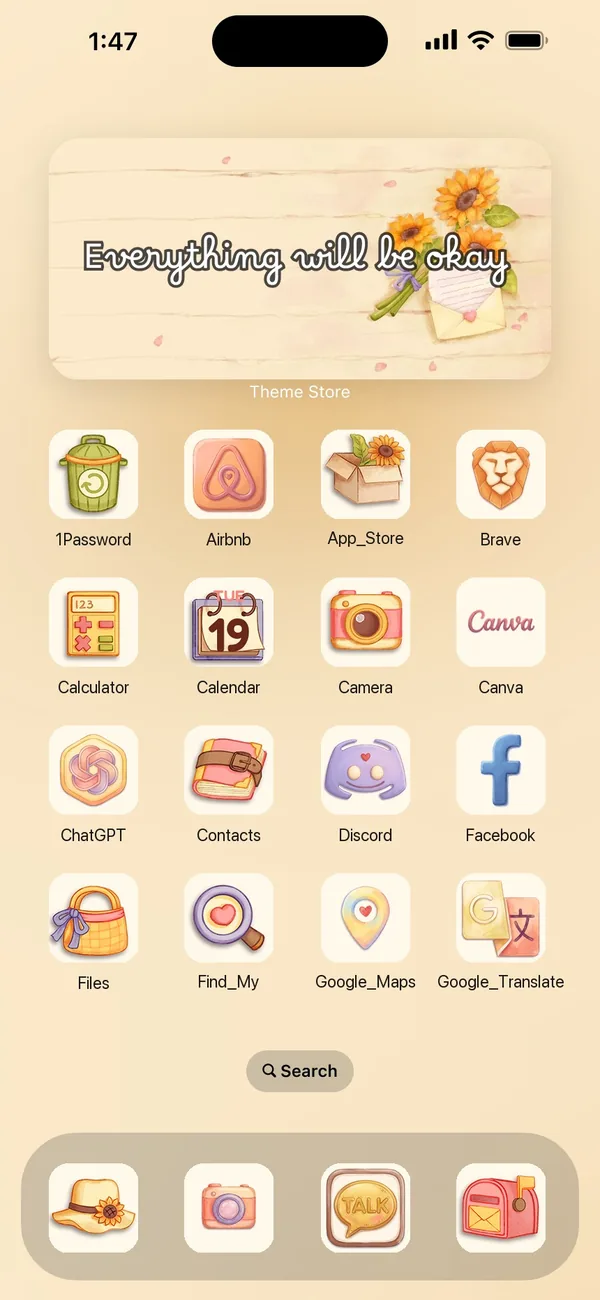
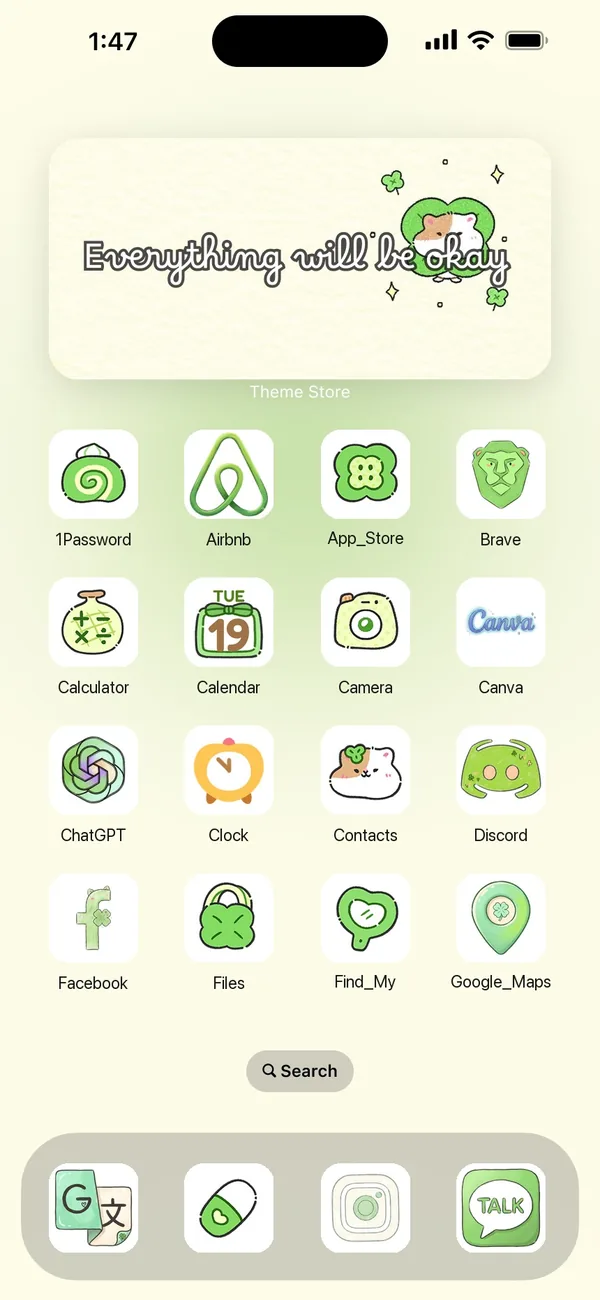
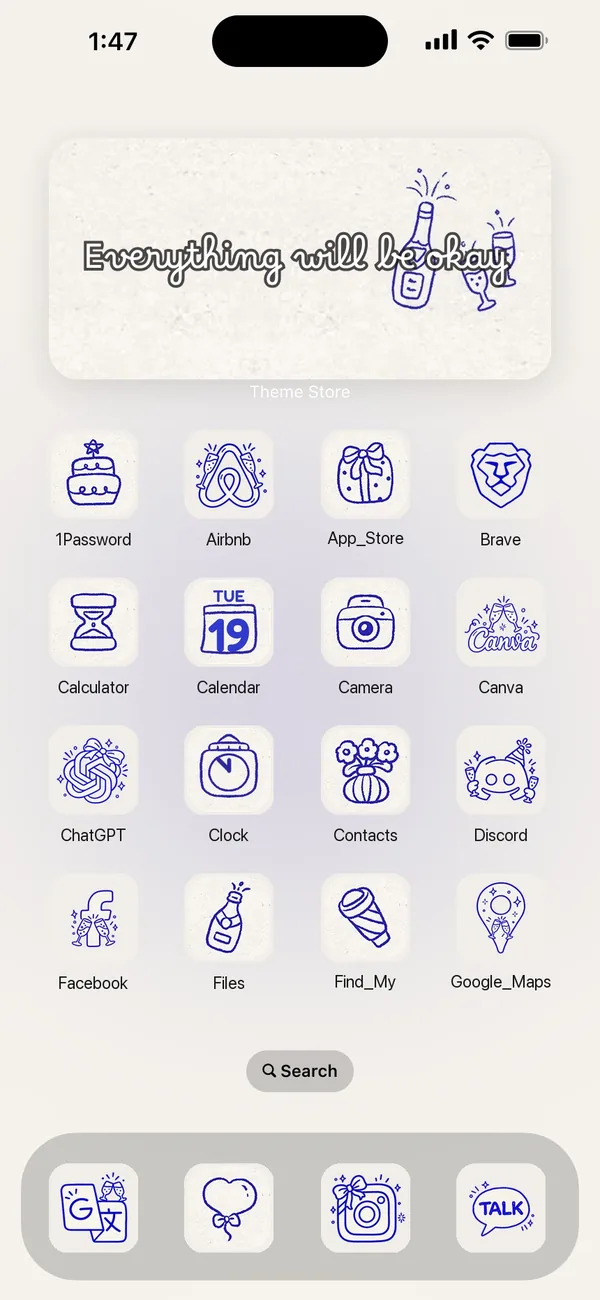
Each theme comes with its own icons for the apps you use most. Missing one? Premium members can ask us to draw it.
 Theme Store
Pick a theme and Theme Store dresses your iPhone in it: matching app icons, home and lock screen wallpapers, and widgets drawn in the same style. A step-by-step guide walks you through every part, with no Shortcuts to set up.
Everything matches
Every theme is a complete set, so the icons, the wallpapers and the widgets belong together. Browse cute, cozy, romantic and seasonal themes, with new ones added as they are made.
Each theme comes with its own icons for the apps you use most. Missing one? Premium members can ask us to draw it.
Save a theme's wallpapers to Photos in one tap, then set them on your home and lock screens.
Clock, quote, countdown and to-do widgets in the theme's look, with your own font and colors.
Just added
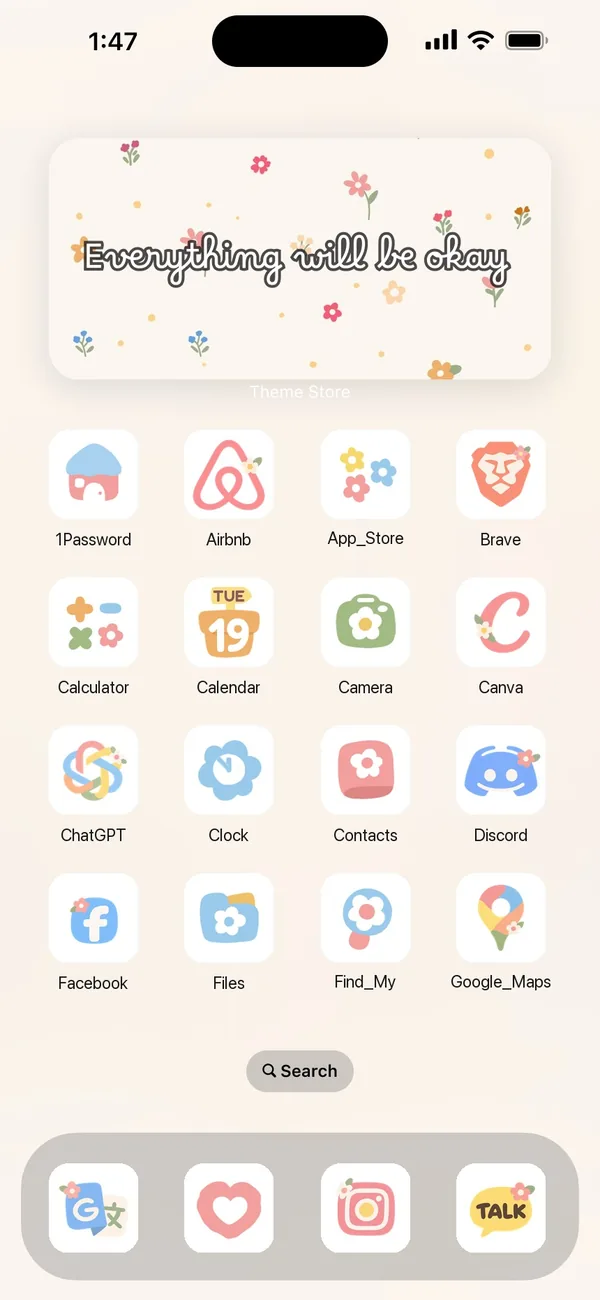
A few of the latest themes in the app, each with its own icons, wallpapers and widgets.
How it works
Changing icons on iPhone usually means building Shortcuts one app at a time. Theme Store does the setup for you and shows each step with a short video.
Free to use
Theme Store is free to download. Unlock themes with diamonds, or go Premium for all of them.
Spend diamonds to unlock a theme. Earn them for free or buy a pack.
Monthly, yearly, or once for life.
No account needed
There is no sign-up. Your loved themes, diamonds, widgets and to-do lists are kept on your iPhone, and the icons are prepared on your iPhone too. The Privacy Policy lists the few things that do leave your device, and why.
Read the Privacy Policy →
Free on the App Store
Theme Store is free to download for iPhone.
Download on theApp StoreWhat people ask before downloading Theme Store.
Matching app icons, home and lock screen wallpapers, and widgets drawn in the same style, so the whole home screen matches.
No. Theme Store prepares the icons on your iPhone and a step-by-step guide with short videos walks you through adding them in Settings.
Theme Store is free to download. Unlock themes with diamonds, which you can earn by watching short videos or inviting friends, or buy in packs. Premium unlocks every theme while it is active, lets you request missing icons, and removes ads.
Clock, quote, countdown and to-do widgets, each with your choice of font and colors.
iPhone with iOS 15 or later.